

If you are reading this article, it’s likely because you got stuck creating a table with the Brick Builder. It’s not just about you; over 73,000 brick users are experiencing the same issue.
Fortunately, many WordPress plugins and Bricks addons are available to address these issues. We are going to share with you three of the easiest methods for creating any table using the Bricks Page builder. So, you don’t have to be stuck anymore! (Thank me later).
After reading this article, you will be able to create various types of tables, including data tables, pricing tables, product comparison tables, Pros and Cons tables, and more, using your native Bricks builder.
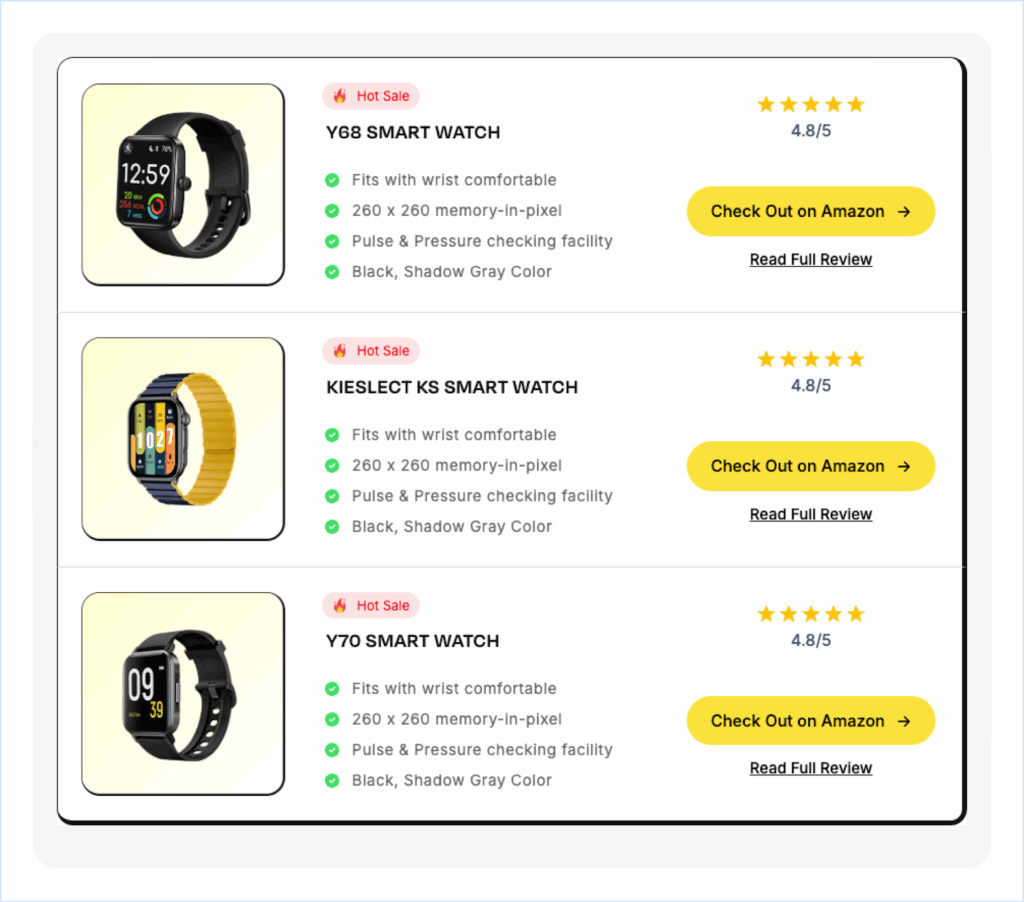
In this article, you’ll learn how to create a table like this using the Brick Builder with a few clicks!
Required Setup:
1. The latest version of WordPress is installed.
2. Bricks Visual Builder is installed and activated.
3. RioVizual plugin installed and activated.
How to create a table in Bricks using RioVizual:
A dedicated table plugin, such as RioVizual, would be an excellent choice for creating any table using Bricks Builder. It’s an all-in-one table creation solution with a dedicated Element for Bricks. Riovizual utilizes the native WordPress editor for creating tables, a lightweight and render-fast solution that enables you to make any visually appealing table within just a few clicks.
Method 1: Create a table in Bricks Builder using Riovizual’s Template:
Step 1: Create a Table from RioVizual’s Dashboard:
Riovizual offers the largest library of pre-designed table templates. And most of them are for free! All you have to do is select your preferred template and insert it anywhere using Bricks elements.
Follow the few simple steps to do this:
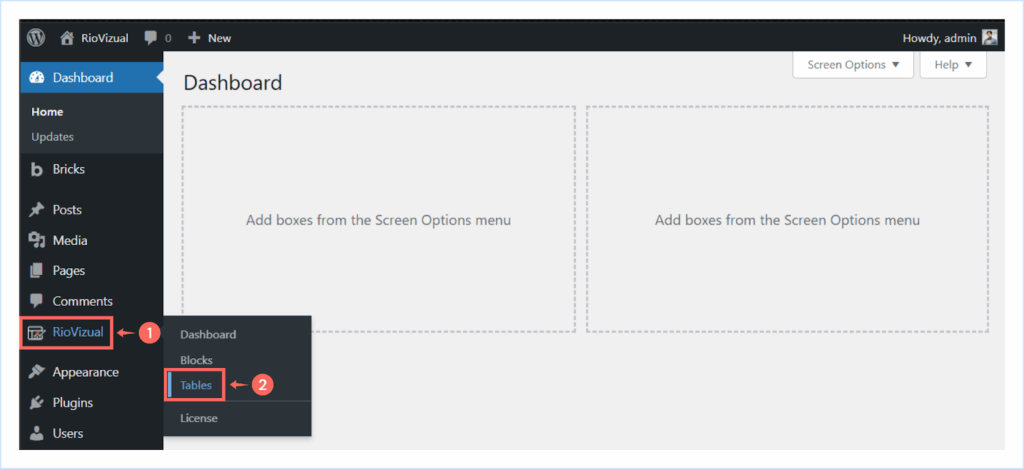
- Go to WordPress Dashboard → Riovizual → Tables.
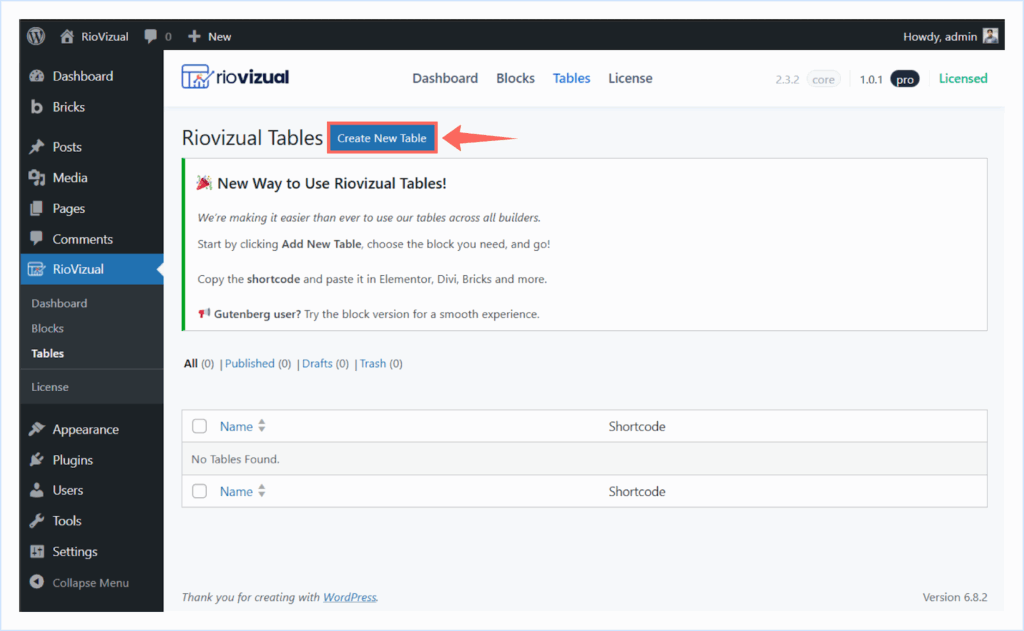
- Click “Create New Table”.
- Name your table.
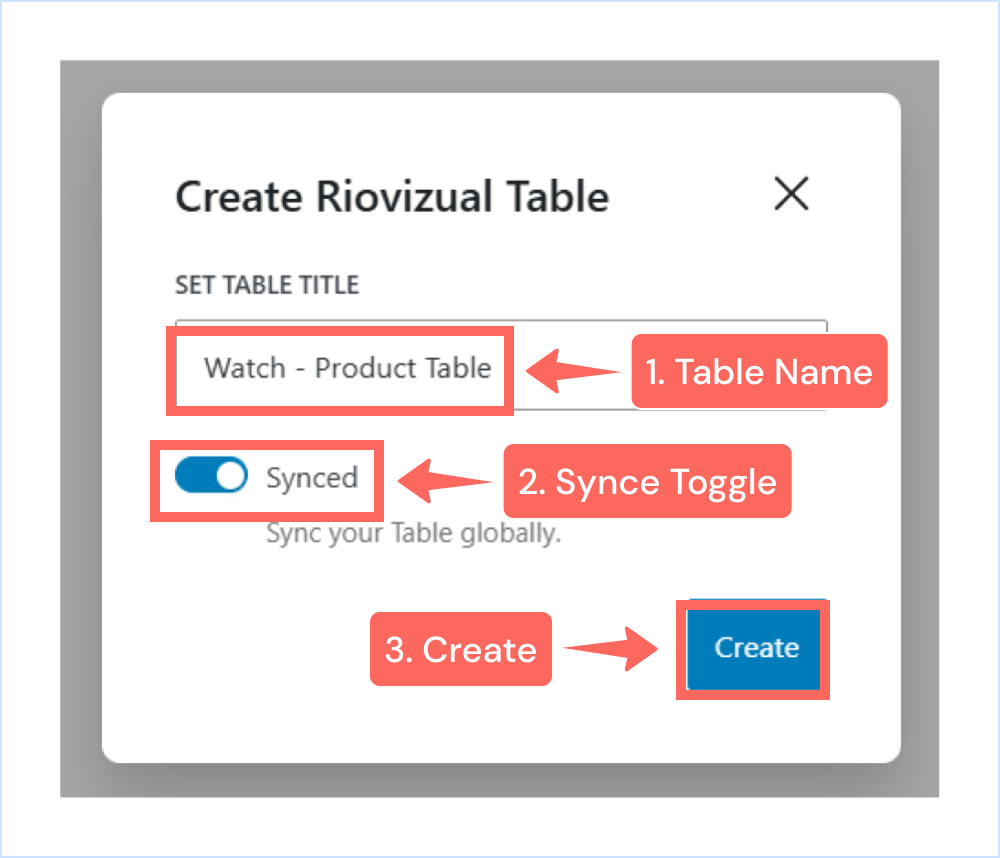
Note: Enable the Synced toggle for global updates (optional)
- Click “Create”.
- The Table Builder interface will open.
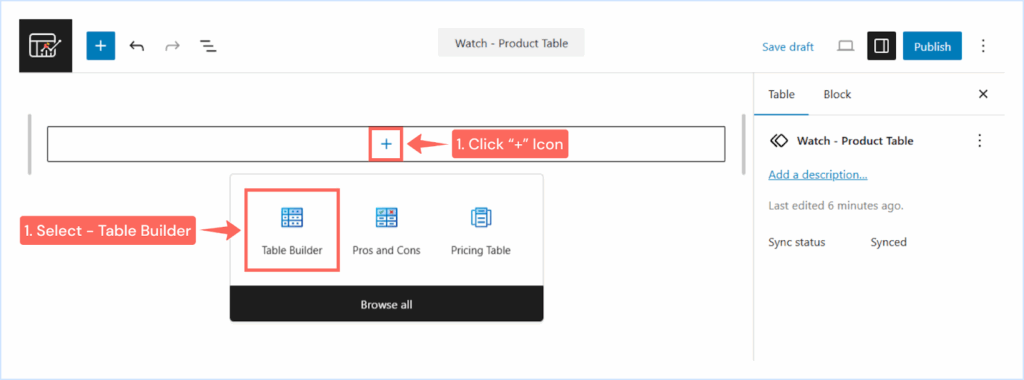
- Click the “+” icon and select Table Builder.
Note: We have chosen the Table builder to proceed. You can choose any of them according to your preference.
Step 2: Choose a Pre-Designed template:

- Choose a pre-designed template and click import.
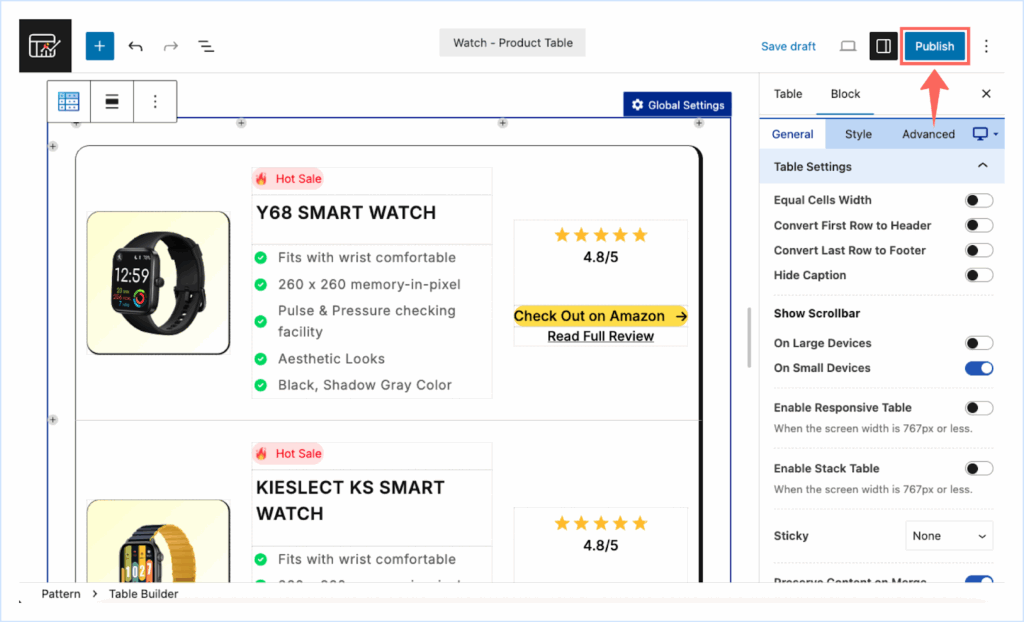
- Make the necessary changes and Publish.
Step 3: Insert the table in Bricks Builder using the RioVizual Element:
- Open the page/post with Bricks Builder where you wanted to insert the table.
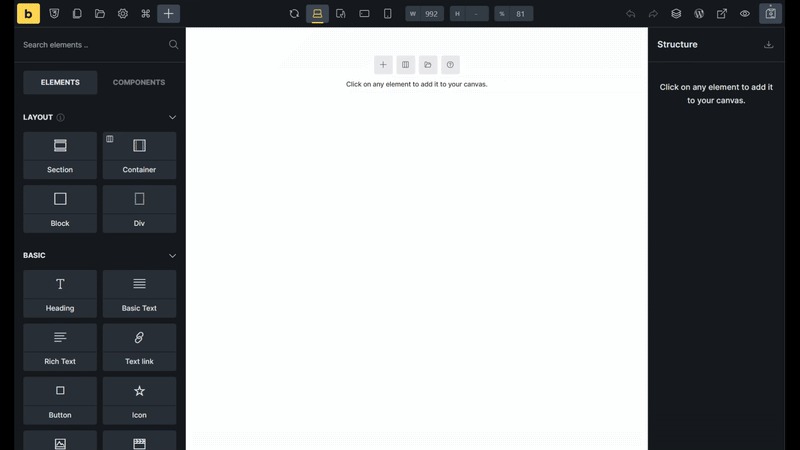
- Search for the Riovizual Element.
- Select the table you created from the RioVizual dashboard.
- Save the changes and publish.
Note: Alternatively, you can use the Bricks Shortcode element to insert the same table.
Alternative: Insert the table using the Bricks Shortcode Element:
- Go to WordPress Dashboard → Riovizual → Tables.
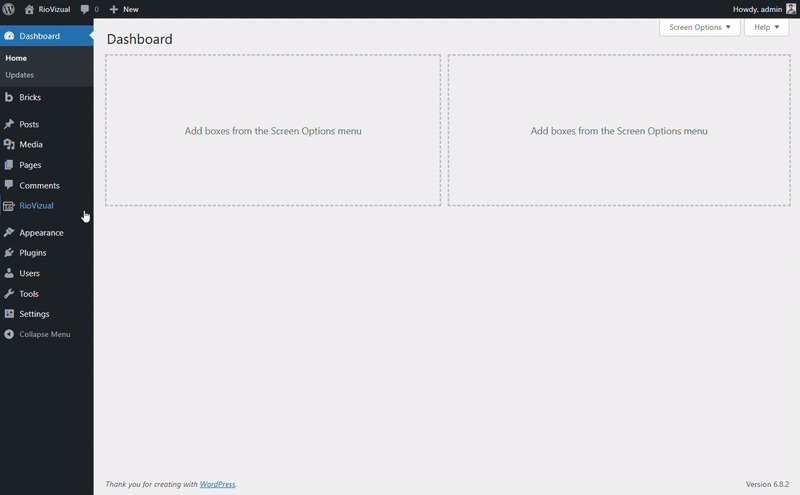
- Copy the Shortcode of the table you created.
- Open the page/post with Bricks Builder you want to insert the table.
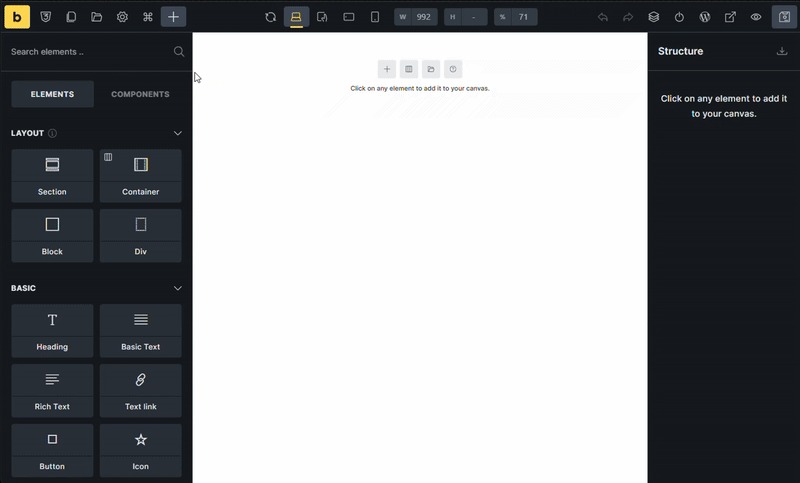
- Search for the Shortcode Element.
- Paste the shortcode of the table you copied earlier.
- Save the changes.
Method 2: Create a Table in Bricks Builder from Scratch:
Now I am going to recreate the same Table from scratch. So you can create a custom one for your Bricks website.
Step 1: Create a Table from RioVizual’s Dashboard:
- Go to WordPress Dashboard → Riovizual → Tables.
- Click “Create New Table”.
- Name your Table and enable the Synced toggle for global updates (optional)
- Click “Create”.
Note: The Table Builder interface will now open. Choose your preferred table type. We are using the Table Builder to recreate the same Table we imported earlier.
- Click the “+” icon and select Table Builder.
- Select build from scratch to create a table from a blank canvas.
Step 2: Define the initial Table Structure:
- Header Section: Left it to the default, as our template had no header.
- Footer Section: Left it to the default as our template had no footer.
- Table Style: Choose the Default table style.
- Cell Border Types: Select Separate cell border.
- Column Count: Set the number of columns to 3.
- Row Count: Define the number of rows to 3.
- Click Create Table after setting the values.
Note: These settings can be modified later if needed.
- You’ll now see a blank table with editable cells containing placeholder text that says “Add text.”
Step 3: Add Image Element:
- Select each cell from the first column and click the “+” Icons.
- Choose “Image Element” from the available element list.
Add Text – Header & First Column.gif
Here, we have added the images from the URL. You can upload it from your computer or the WordPress media library.
Step 4: Add the Image Element:
- Click the “+” icon in the bottom-right corner of the cells.
- Select the Image element and insert your image.
- Click each image element and navigate to the general tab.
- Toggle – Insert from URL and paste the image URL to each field.
Step 5: Style the image elements:
- Click on any image you inserted and navigate to the style tab.
- Select ‘Global’ to apply the changes to all images within the table.
- Set a 200px width to all images.
- And align the images horizontally in the middle of the cells.
Step 6: Add Media & Text Element:
- Click the “+” icon in the bottom-right corner of the cells.
- Select the Media & Text Element from the available element list.
- Navigate to the General tab, and add the text “Hot Sale” from the content section.
- Enable the toggle and insert an image from a URL.
- Paste the URL (image address) of your desired media.
Note: We will now use the same media and text element in other cells. To do this, we will copy the element and paste it into different cells.
- Select a text placeholder and right-click the mouse.
- Click Delete element to remove the text holder from cell
- Now, select the element you want to copy and right-click the mouse.
- Select Copy Element to copy the element to your clipboard.
- Now select the cell you want to paste the element.
- Right-click on the mouse, and then click to Paste Element.
Step 7: Style Media & Text Element:
- Select any Media and Text element from the table.
- Navigate to the style tab.
- Select ‘Global’ to apply changes to all elements within the table.
- Go to the Wapper Style Section and do the following customizations:
- Choose text color: #FF0000
- Open Wrapper Background setting → Choose Classic for a single color solid background.
- Set the background color using the Hex Code: #FF0000
- Open the Typography Settings and make the following changes:
- Font Weight: 400
- Font Size: 13
- Open the border settings and make the following changes:
- Set a 35px border radius around the Wrapper.
Note: It will make each corner of the border a rounded shape.
- Open the sizing settings and set a 30% Wrapper base width.
Note: It will allocate 30% of the space in the entire wrapper container.
- Open the Spacing settings and set a padding (inner spacing) to the Wrapper:
- First, click on the Unlinked option to set a different value for each field.
- We have set 3px Top and 3px Bottom padding to match the style.
- Open the Alignment settings to change the Wrapper Alignment:
- Set the Wrapper to be middle-aligned (Both Horizontally and vertically).
Note: You may notice that our Wrapper is not showing exactly as it was in the template we chose earlier. Either you can make all the table cells’ widths equal to match the style. Alternatively, you can align the table to Full width to achieve the same effect.
- To make all the table cells equal:
- Select the entire table and go to the General Tab.
- Enable the toggle Equal Cells Width.
To align the table in Full Width:
- Select the entire table and navigate the Align from the Block Toolbar.
- Choose the Full Width option.
Note: Now the Wrapper of the Media and Style Element looks the same as it did in the table template we imported earlier.
Step 8: Add Text Elements:
- Click on the “+” Plus icon from the bottom right corner of the cells.
- Choose the Text Element from the Available Element List.
- Now, click the placeholder and start typing the text.
Step 9: Style the Text Element:
- Select any text element we entered and navigate to the Style Tab.
- Select ‘Global‘ to apply the changes to all the text elements we entered.
Do the following changes to match the style:
- Color (text color): Black (#141414)
- Typography:
- Font Weight: 600;
- Font Size: 20px;
- Latter Spacing: 0.5 px;
- Text Transformation: Capital Case
- Open the Spacing to add a Margin (Outer Spacing) to the bottom of the text elements:
- Unlinked the field first to add value separately.
- Add a 16px margin to the bottom of the text.
Step 10: Add Adv. List Element:
- Click on the “+” icon in the bottom right corner of the cells.
- Select the Adv. List Element from the available element list.
Add List Items and Icon:
- Select the Adv. List Elements and navigate to the General tab.
- Expand a list section – Type the text for our list item.
- Click to select icon and choose an exact icon from the Font Awesome library.
- Add new list items by duplicating the last one and changing the text.
Note: Now, copy the advanced list element content and paste it into other cells below.
Step 11: Style Adv. List Element:
- Select any Adv. List Element and navigate to the style tab.
- Choose Global to style all the Adv. List Element within the Table.
- Style the Icon (Icon Style):
- Gap: Set an 8px gap between text and icons.
- Size: Define a 14px size for the icons.
- Color: Set the icon color to #08DC64.
- Style the icon (Item Style):
- Color: Set the item text color to #666666
- Typography: Change the typography settings for item text:
- Font Weight: 400
- Font Size: 15px
- Line Height: 24px
- Letter Spacing: 0.5px
Step 12: Add Star Ratings Element:
- Select any cell and click the “+” Plus icon from the bottom right corner.
- Choose the Star rating from the available element list.
Now customize the Star rating content from the General tab:
- Set The Rating Values:
- Rating: 4.8
- Rating Scale: 5
- Show Rating Value: Enable the toggle to show the rating value.
- Rating Value Style: Set it to ‘numeric’ to display the ratings as numbers.
- Rating Value Position: Bottom
Note: Now we copy the same star rating element with the content and paste it into other cells to match the template we imported earlier. You can change the star rating values according to your preferences.
Step 13: Style Star Ratings Element:
- Select any Star ratings element and navigate to the Style tab.
- Select Global to style all the star rating elements together.
Icon Style:
- Fill Color: Change the fill color for rated stars.
- We have set a fill color using Hax Code: #FFC300
Wrapper Style: Style the container that contains the star rating element.
- Spacing: Add a 40px Margin (outer spacing) to the bottom of the container.
- Alignment: Align the wrapper horizontally in the middle of the cell.
Step 14: Add Adv. Button Element:
- Select the cell and click on the “+” plus icon from the bottom right corner.
- Choose Adv. Button from the available element list.
Customize the Button Text and URL:
- Navigate to the General tab and add the Button Text and Destination URL.
- We have left the URL field empty and used a #. (You can add the destination URL here.
Note: Now we copy the same Button element with the content and paste it to other cells to match the template we imported earlier. You can change the Button text and URL according to your preferences.
Step 15: Style the Adv. Button Element:
- Select any Adv. Button Element and navigate to Style tab.
- Select ‘Global’ to style all buttons within the table.
- Left the button style – Filled as it was in the default.
- Icon Style:
- Gap: Add a 12px gap between the button text and icon,
- Size: Set the icon size to 14px.
- Button Style:
- Color: Black (Button Text Color)
- Background → Classic → Color #FFE23D
- Typography: (Button Text)
- Font Weight: 500
- Font Size: 16
- Border: Add a border radius to the button to round its corners.
- We have added a 35px border around the button.
- Alignment: Align the button horizontally within the cell.
- We set the Adv. Buttons Alignment to Horizontal Middle Align.
Step 16: Add Button Element:
- Select any cell and click the “+” Plus icon from the bottom right corner.
- Choose “Button” from the available element list.
Customize the Button Content:
- Select the Button Element and navigate to the General tab.
- Add Button Text (call to action) and a destination URL where the buttons will link to.
Note: Now we copy the same Button element with the content and paste it to other cells to match the template we imported earlier. You can change the Button text and URL according to your preferences.
Step 17: Style the Button Element:
- Select a button element and navigate to the Style tab.
- Select ‘Global‘ to style all buttons together.
- Choose the “Filled” button style, as it is the default.
- Color: Set the button text color to Black.
- Background: Left the button background to Default.
- Typography: Do the font label styling for button text.
- Font Weight: 500
- Font Size: 15
- Text Decoration: Underline
- Alignment: Align the buttons horizontally to the center.
Hurrah! Our Table is Ready!
And that’s it. We have recreated the same table that we imported earlier. Now we can insert this table into any bricks builder post/pages using the Riovizual element or Shortcode element.
Which Method should you apply?
In this article, we have described all the methods to create tables using Bricks Builder. You can apply any of these methods to create an outstanding using your native Bricks Builder.
The table creation process should be easy. For this reason, we recommend using a Plugin like RioVizual to create tables using the Bricks builder.
Our Recommendations:
1. Use the pre-designed templates of RioVizual to speed up the table creation process.
3. Built from scratch to create and customize the table according to your needs.
Want to learn more about which table plugin would be the best for your website? We have tested and compared 15 Best WordPress Table Plugins for you.

Leave a comment