

If you are trying to add a table to your Elementor page but cannot find a table widget, you are not alone. Many Elementor users run into the same problem because Elementor does not include a built-in table widget.
Although Elementor offers a Pricing Table widget, it is still limited when creating data tables, comparison tables, pros and cons tables, or product tables.
The good news is that there are still two easy ways to create tables in Elementor.
You can use a WordPress table plugin like RioVizual that works directly with Elementor, or you can create a table manually using the HTML widget.
Both methods work with Elementor Free and Elementor Pro.
This guide walks you through both approaches step by step, even if you have never created a table in Elementor before.
Types of Tables You Can Create in Elementor
Elementor does not limit the types of tables you can create. You can build almost any kind of table depending on your needs.
Here are some of the most common table types users create in Elementor:
- Comparison tables: Compare products, tools, or services side by side
- Pricing tables: Display pricing plans with features and CTAs
- Data tables: Present structured data like specifications, stats, or metrics
- Product tables: Showcase products with images, prices, and buttons
- Pros and cons tables: Highlight strengths and weaknesses visually
- Feature tables: Showcase features across multiple plans or versions
Each of these tables can be created quickly using the plugin method.
The HTML method also supports all of them, but it requires manual coding and additional effort for every update or design change.
Our Created Table Preview
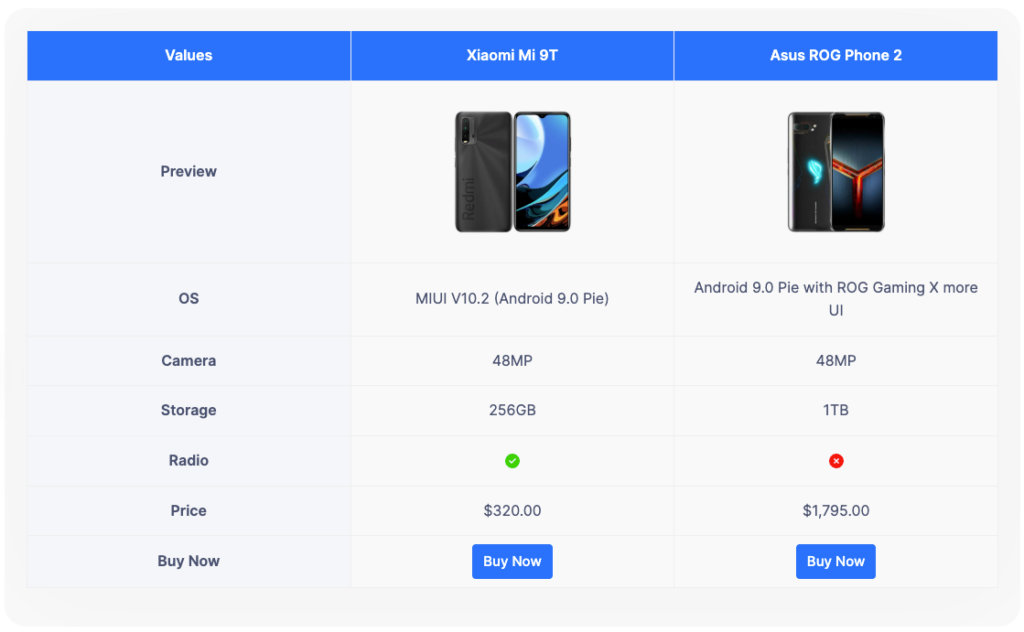
By the end of this guide, you will be able to create tables like this in Elementor using both the plugin and HTML methods.
The same workflow can also be used for pricing tables, product tables, data tables, and other custom table layouts.
What You Need Before You Start
Before you start creating tables in Elementor, make sure the following requirements are in place.
- The latest version of WordPress is installed.
- Elementor Plugin installed and activated. (Free or Pro)
- RioVizual installed and activated. (Required for Plugin Method)
Once everything is set up, you can follow either of the methods below to create your table in Elementor.
Method 1: Create a Table in Elementor Using the RioVizual Plugin
RioVizual is a WordPress table plugin that supports the most common table layouts and includes a dedicated Elementor widget for adding tables anywhere inside the Elementor page builder.
It offers two flexible ways to create tables in Elementor, depending on your workflow and customization needs:
- Approach 1: Use pre-designed templates for faster table creation
- Approach 2: Build a table from scratch for full manual customization
Both approaches are covered below.
Approach 1: Create a Table Using a Pre-Designed Template
RioVizual includes a library of 70+ ready-made table templates, many of which are available for free. This is the fastest way to create a table in Elementor without starting from scratch.
This guide uses the Table Builder block, but you can use any RioVizual blocks based on your needs.
Step 1: Create a New Table from the RioVizual Dashboard
- Go to WordPress Dashboard > RioVizual > Tables
- Click Create New Table
- Enter a name for your table
- Enable the Synced toggle if you want updates to apply across every page where the table is used.
- Click Create
- Click the + icon and select Table Builder
Step 2: Select a Pre-Designed Template
- Browse the available templates in the library
- Hover over the template you want to use
- Click Import
Your table will now be created with sample content and styling. You can replace the text, swap images, customize the design, and add your own data directly inside the editor.
- Once your table is ready, click Publish to save it.
Step 3: Add the Table to Your Elementor Page
Once your table is published, you can insert it into any page or post in Elementor. You can insert it using the RioVizual widget or the Shortcode widget.
Option A: Using the RioVizual Widget
- Open your page or post in Elementor
- Search for the RioVizual widget and insert it into the page
- From the widget settings, open the Select a Table dropdown
- Choose the table you created
Option B: Using a Shortcode
- Go to WordPress Dashboard > RioVizual > Tables
- Copy the shortcode next to the table you want to use
- Open your page/post in Elementor
- Search for the Shortcode widget and insert it
- Paste the shortcode into the field
Both options let you reuse the same table across multiple pages.
If you update the table in the RioVizual dashboard, those changes will reflect everywhere the table appears, as long as the Synced toggle is enabled.
Approach 2: Build a Table from Scratch
If you prefer to start with a blank canvas and build your table exactly the way you want, use the Build from Scratch option inside RioVizual.
In this approach, we are going to recreate the same comparison table from scratch instead of using a pre-designed template.
Step 1: Start with a Blank Layout
Go to WordPress Dashboard → RioVizual → Tables, create a new table, and open the table editor using the Table Builder block.
We already covered this process earlier in Approach 1 → Step 1.
This time, select Build from Scratch instead of choosing a template.
Step 2: Set Up the Table Structure
After selecting Build from Scratch, a table setup panel will appear. Here, you need to define the initial structure of your table:
- Header Section: Enable this toggle to make the first row a header row
- Column Count: Set to 3
- Row Count: Set to 8
- Click Create Table.
Note: These settings are not permanent. You can add or remove rows and columns later as your table grows.
Once confirmed, a blank table canvas will appear with “Add Text” placeholders inside each cell.
Step 3: Add Content to Your Table
You can now start filling the table cells with your content. RioVizual supports a total of 19 elements and 12 in the Table builder for adding different types of content.
3.1: Add Text Content
- Click any cell showing the Add Text placeholder
- Start typing directly to replace it
Begin by filling in the header row to define your column labels. Then add content to the remaining rows.
3.2: Add Images Content
- Select the cell where you want to insert the image
- Click the + icon in the bottom-right corner of the cell
- Choose Image from the element list
- Go to Settings Panel >Content tab > Set Image and choose:
- Upload Files: Upload an image from your computer
- Media Library: Select image from the WordPress media library
- Insert from URL: Enable this option and paste an image URL
3.3: Add Icon
- Select the target cell where you want to add the icon
- Click the + icon in the bottom-right corner
- Choose Icon from the element list
- Go to Settings Panel > Content tab > Select icon and set:
- Select Icon: Pick your preferred icon from the icon library
3.4: Add Button
- Select the target cell where you want to add a button
- Click the + icon from the bottom right corner
- Choose Button from the element list
- Select the Add Text Placeholder inside the Button
- Add your button text (call-to-action)
Once all the content is added, your table structure is complete. The next step is styling.
Step 4: Style the Table and Its Elements
This is where you can style every element of this table including the entire table layout. Here is how to style each part of this table.
4.1: Style the Header Row
- Select the first row using the Row Selector
- Go to Settings Panel > General tab > Cell Settings and set:
- Horizontal Alignment: Center
- Then, navigate to Style tab> Cells and apply:
- Background: Classic
- Background Color: #0471FB
- Expand Text Settings from the Style tab and apply:
- Color: #FFFFFF (Text Color)
- Open Typography and apply:
- Font Weight: 600
ℹ️ Some styling options in the settings panel, such as Typography, may not appear immediately by default. Click the (⋮) three-dot menu to access additional controls.
4.2: Style the Image
Now style all images inside the table using Global Style.
- Select Global Style from the Block Toolbar or Settings Panel
- Open the Image Settings and set:
- Sizing > Width: 140px
- Spacing: 20px (Top, Bottom)
- Alignment > Horizontal: Middle
4.3: Style the Icon
- Select the icon and go to Settings panel > Style tab > Icon Style and apply:
- Icon Color:
- #1FD100 for the checkmark icon.
- #FF1706 for crossmark icon.
- Icon Color:
4.4: Style the Button
Now style all buttons inside the table using Global Style.
- Select Global Style from the Block Toolbar or Settings Panel
- Open the Button Settings and apply:
- Color: #FFFFFF (button text)
- Background: Classic
- Background Color: #0471FB
- Typography:
- Font Weight: 500 (button text)
- Font Size: 15px
- Line Height: 22px
- Border:
- Border Radius: 4px (Top, Right, Bottom, Left)
- Spacing:
- Padding: 8px (Top and Bottom), 12px (Left and Right)
- Alignment:
- Horizontal Alignment: Middle
4.5: Style the Feature Label Cells in the First Column
Now we are going to style multiple cells in the first column together to keep the feature labels visually consistent across the table. Follow these steps:
- Press and hold the Ctrl key and click the first cell
- While still holding the Ctrl key, click the last cell in the selection range
- Press the Shift key to select all cells between them
Now go to the Style tab in the Settings Panel to style all selected cells together, including the cell background and text styling.
Style the Cell Background
- Expand Cells Settings > Background and apply:
- Background: Classic
- Background Color: #0471FB
Style the Text Inside the Cells
Expand Text Settings → Typography and apply:
- Font Weight: 600
ℹ️ Some styling options in the settings panel, such as Typography, may not appear immediately by default. Click the (⋮) three-dot menu to access additional controls.
4.6: Style the Entire Table
Finally, apply global settings to the entire table for consistent spacing and structure.
Enable Equal Cell Width:
- Open Table Settings from the top-right corner of the editor
- Enable the Equal Cell Width toggle from the General tab
This ensures all columns maintain equal width regardless of content size.
Apply Global Cell Styling:
- Select Global Style from the Settings Panel or Block Toolbar
- Open Cells settings and apply:
- Border Width: 1px
- Border Style: Solid
- Border Color: #F0F0F0
- Open Alignment settings and set:
- Horizontal Alignment: Middle
And that’s it! You have now recreated the same table layout from scratch that was imported earlier. To add the table to your Elementor page, follow the same steps described in Approach 1 → Step 3.
Method 2: Create a Table in Elementor Without a Plugin (HTML/CSS)
You can also create a table manually using Elementor’s built-in HTML widget. This method gives you full control over the table structure and styling, but it requires basic HTML and CSS knowledge.
Important for beginners: This method is best for simple or one-time tables. If you plan to create multiple tables, a plugin-based solution is usually easier, faster, and more scalable.
The HTML and CSS Code
Below is a complete HTML and CSS example that recreates the same comparison table used in the plugin tutorial above.
<!DOCTYPE html>
<html lang="en">
<head>
<meta charset="UTF-8">
<title>Product Comparison Table</title>
<style>
body {
font-family: Arial, sans-serif;
}
.comparison-table {
width: 100%;
border-collapse: collapse;
}
.comparison-table th, .comparison-table td {
border: 1px solid #f0f0f0;
padding: 16px;
text-align: center;
vertical-align: middle;
}
.comparison-table thead th {
background-color: #0471fb;
color: #ffffff;
font-weight: 600;
}
.comparison-table tbody tr:nth-child(even) {
background-color: #f0f3f9;
}
.comparison-table tbody tr:nth-child(odd) {
background-color: #ffffff;
}
.comparison-table img {
width: 140px;
margin: 20px 0;
}
.comparison-table .icon-check {
color: #1fd100;
font-size: 20px;
}
.comparison-table .icon-cross {
color: #ff1706;
font-size: 20px;
}
.btn-buy {
background-color: #0471fb;
color: #fff;
font-size: 15px;
padding: 8px 12px;
border: none;
border-radius: 4px;
cursor: pointer;
font-weight: 500;
text-decoration: none;
display: inline-block;
}
.btn-buy:hover {
background-color: #150aa0;
}
@media screen and (max-width: 767px) {
.comparison-table img {
width: 60px;
}
}
</style>
</head>
<body>
<table class="comparison-table">
<thead>
<tr>
<th>Values</th>
<th>Xiaomi Mi 9T</th>
<th>Asus ROG Phone 2</th>
</tr>
</thead>
<tbody>
<tr>
<td><strong>Preview</strong></td>
<td><img src="https://riovizual.com/wp-content/uploads/2023/07/Xiaomi-Redmi-9T.webp" alt="Xiaomi Mi 9T"></td>
<td><img src="https://riovizual.com/wp-content/uploads/2023/07/asus_rog.webp" alt="Asus ROG Phone 2"></td>
</tr>
<tr>
<td><strong>OS</strong></td>
<td>MIUI V10.2 (Android 9.0 Pie)</td>
<td>Android 9.0 Pie with ROG Gaming X more UI</td>
</tr>
<tr>
<td><strong>Camera</strong></td>
<td>48MP</td>
<td>48MP</td>
</tr>
<tr>
<td><strong>Storage</strong></td>
<td>256GB</td>
<td>1TB</td>
</tr>
<tr>
<td><strong>Radio</strong></td>
<td><span class="icon-check">✔</span></td>
<td><span class="icon-cross">✖</span></td>
</tr>
<tr>
<td><strong>Price</strong></td>
<td>$320.00</td>
<td>$1,795.00</td>
</tr>
<tr>
<td><strong>Buy Now</strong></td>
<td><a href="#" class="btn-buy">Buy Now</a></td>
<td><a href="#" class="btn-buy">Buy Now</a></td>
</tr>
</tbody>
</table>
</body>
</html>
Note: Replace the sample content with your own data before publishing the table. You can update product names inside the <th> and <td> tags, replace image URLs inside the <img src=””> tag, change button links inside the <a href=””> tag, edit prices and specs inside the <td> tags, and update image alt text inside the <img alt=””> attribute for better accessibility and SEO.
How to Add the HTML Table in Elementor
- Open your page or post in Elementor
- Search for the HTML widget and insert it into the page
- Paste the complete HTML and CSS code into the widget field
- Click Save or Publish
Your table will now appear on the page using the styling defined in the code.
Making Your Elementor Table Responsive
Mobile responsiveness is one of the most overlooked parts of table design. A table that looks clean on desktop can quickly become difficult to read on smaller screens if it is not optimized properly.
Without proper responsiveness, users may need to zoom, scroll awkwardly, or struggle to read the table content on mobile devices.
Responsive Options in the Plugin Method (RioVizual)
RioVizual includes built-in responsive controls, so you can adjust how your tables behave across different screen sizes directly from the editor.
You can access these settings from:
Table Settings → General tab → Responsiveness
Here are some of the most useful responsive features available in RioVizual:
Here you can:
- Enable Scrollbar on Large Devices: Enable this option when your table content exceeds the container width. RioVizual automatically adds horizontal scrolling to prevent layout breaking, which is especially useful for large comparison tables, data tables, and tables with many columns.
- Responsive Mode: RioVizual includes multiple responsive modes such as Responsive, Scrollable, and Stack. These modes help you optimize table layouts for smaller screens by adjusting the layout automatically, enabling horizontal scrolling, or stacking content vertically for better mobile readability.
- Sticky: RioVizual also lets you make the first row or first column sticky. This is especially useful for large comparison and data tables because users can still see row and column labels while scrolling through the table.
- Desktop, Tablet, and Mobile view: RioVizual includes dedicated responsive controls for Desktop, Tablet, and Mobile devices in the Settings Panel. You can customize styling, spacing, alignment, and content visibility separately for each device while previewing how the table looks across different screen sizes.
Responsive Options in HTML/CSS Method
If you are using the manual HTML method, you need to handle table responsiveness yourself. The sample code above already includes a basic media query that reduces image sizes on screens smaller than 767px.
For tables with many columns, adding horizontal scrolling is usually the best approach for mobile devices. You can use the following CSS to enable horizontal scrolling on mobile:
.table-wrapper {
  overflow-x: auto;
  -webkit-overflow-scrolling: touch;
}
To apply it, wrap your <table> element inside a <div class=”table-wrapper”> container.
General Responsive Guideline For any Method
- Avoid using more than 4–5 columns on mobile layouts
- Keep text short to prevent overflow issues
- Test on real devices, not just browser resize tools
- Make buttons and clickable elements easy to tap
- Use scrolling or stacked layouts for large tables
Which Method Should You Use?
Both methods work for creating tables in Elementor, but the right choice depends on how much time you want to spend and how much flexibility and scalability you need.
Use the Plugin Method (RioVizual): This is the better option for most users, especially beginners. It makes table creation faster with pre-designed templates, built-in responsiveness, reusable tables, and centralized table management.
Use the HTML/CSS Method: This method works best when you only need one or two static tables and prefer full manual control over the table structure and styling. It is more suitable for users who are comfortable working with HTML and CSS.
Looking for more Elementor resources? Check out our guide to the best Elementor table pluginsto compare all available options.

Leave a comment